
Prepar3D Installation and Configuration
Overview
This document describes how to install and configure Prepar3D (P3D) and the most important basic settings. Please note that depending on the configuration of the simulator, other performance settings may also be useful.
In Premium Plug & Fly versions, the software is already pre-configured. In this case, you do not need these instructions.
Preconditions
Before you start make sure that your computers have an up-to-date Windows 11 installed, you have alle necessary software installed and you did all wiring of displays and USB connections. You will also need a stable internet connection. Ideally you have all computers be placed at its final position in the room, so you do not need to unplug cables any later again.
Prepar3D - Installation
Download the latest version and install it.

Flight Models and Modules
To connect ProSim with Prepar3D, various add-ons must be installed.
- ProSim Prepar3D Module
- ProSimA322 Visual Model for P3D
Please install the latest version by downloading the installation programs via ProSim System and following the respective instructions of the installation programme.

Please do not change default installation path.
SimConnect is an interface between third party applications and Prepar3D. It’s used to enable communication between Prepar3D and ProSimA320 as well as several other modern applications. You can find the installer package here: C:\Program Files\Lockheed Martin\Prepar3D v5\redist\Interface\FSX-SP2- XPACK\retail\lib
SimConnect Installer does not have any dialog. Simply start the installer and the software installation will be executed.
Prepar3D - Configuration
The following section will guide you through the most important configuration settings of Prepar3D (P3D).
At startup please enable the ProSim-AR Prepar3D Module.

Standard Scenery
Select your favourite ProSim A320 and take-off location in the start menu.

Then save the scenario as standard.

The most important system settings are described below.
Settings
Please select settings based on this template.

No settings need to be adjusted on this page.

Deaktivieren Sie "Mute On Lost Focus".
If you have more than one sound card, please select the corresponding output instead of using "Default ... Device".

As a rule, you do not need to change any settings here.
For performance reasons, we recommend using an add-on for Aviation Traffic.

Please adjust the settings according to your requirements. In particular, check the settings under "Crash and damage" and "Engines".
Deactivate "Use Autorudder" if you have a rudder pedal system.

The following settings depend heavily on the performance of your computer.
Please note that the performance settings are based solely on our experience and may vary from system to system.

On modern system with RTX5090 video card, we recommend to turn off VSync and Triple Buffering. Set Target frame rate to 60.


Please remove all key and axis assignments. This is important so that you do not inadvertently change settings in P3D by pressing a key.

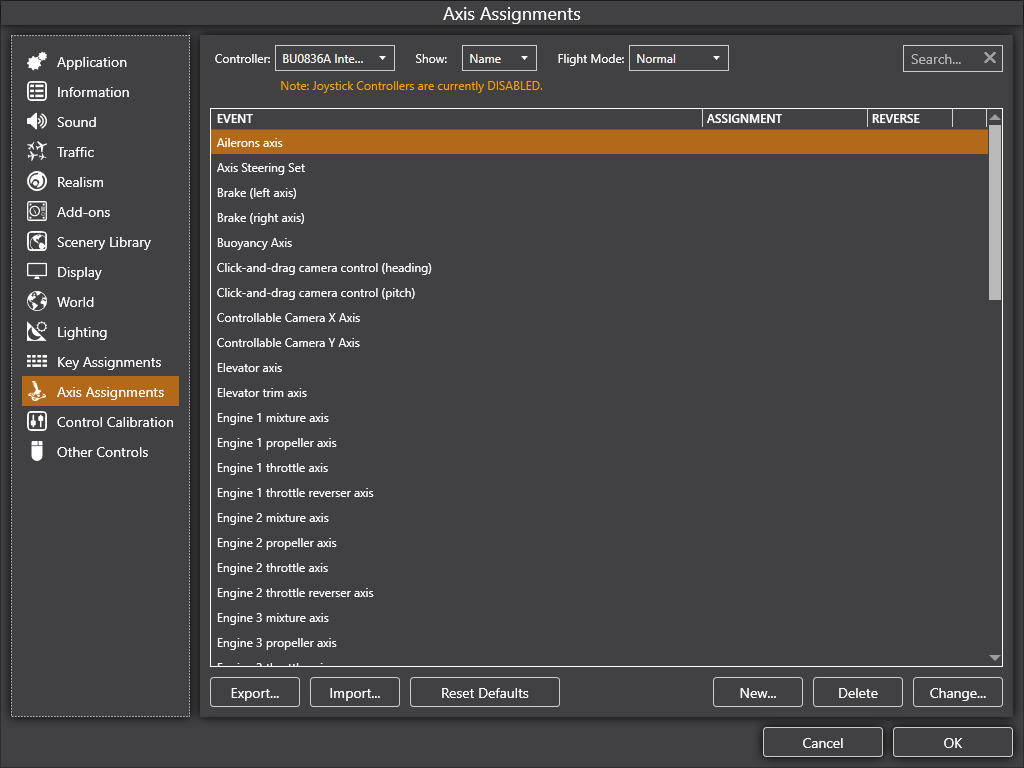
Please deactivate "Enable Controller(s)".
To avoid that P3D is interfering with the fly-by-wire system of the A320 you need to remove axis and buttons!

Please continue with calibration of the flight controls.
